Setting up your knowledge source
Any time an automation answers a question with AI — a dedicated FAQ automation, or "Reply with AI" turned on inside a custom one — it answers only from documents you've uploaded to Knowledge, never from anything it invents. This guide covers uploading and organizing those documents; the automation guides above cover pointing an automation at them.
Which plan you need: Uploading documents needs a paid plan that includes AI, and each plan holds a set number of documents — pricing lists them.
Add your first document in 3 steps
- Open Knowledge from the sidebar, and tap "+ Add source."
- Choose a file, and give it a name. PDF, DOCX, TXT, Markdown or CSV, up to 25 MB. Use a name you'll recognize later, like "Shipping and returns policy" — you can optionally file it straight into a group too.
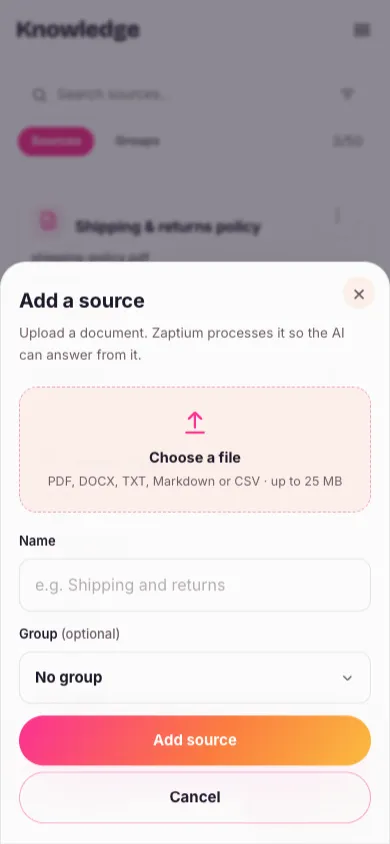
- Wait for it to finish processing. A new source moves from Uploading to Processing to Ready on its own — that's Zaptium reading, splitting and indexing the document. Nothing can answer from it until it says Ready.

Grouping related documents together
If several documents cover one topic — a shipping policy, a returns policy, and a sizing chart, say — bundle them into a group from the Groups tab, and point an automation at the whole group instead of one document at a time. Zaptium searches across every document in the group to answer a question, so it doesn't matter which one actually has the answer.

A document can belong to more than one group, deleting a group never deletes the documents inside it, and moving documents in or out of a group takes effect immediately — nothing needs reprocessing.
Testing it before a customer ever sees it
Every ready source and group has an Ask button. Use it to try the exact kind of question a customer might send, and see precisely what Zaptium would have answered — including which document it's citing, so you can tell at a glance whether the answer actually came from where you think it did.

Ask it something your documents genuinely don't cover, too. A good answer here is one that honestly says it doesn't know — that's the same behavior your customers will get, and it's worth confirming before an automation goes live.
There's no free-writing mode to turn on. If a question isn't covered by anything in the source or group an automation points at, Zaptium never guesses — it either stays quiet or hands the conversation to your priority inbox, depending on how that automation is configured. More on this in how Zaptium keeps your account safe.
What's next
With a document ready, point an automation at it — auto-answering common questions is the dedicated goal for this, or turn on "Reply with AI" inside a fully custom automation for more control over when it kicks in.
Give your AI something real to answer from
No card needed. Connect your account and go live in minutes.
Start free