Build a fully custom automation
Sometimes what you want doesn't fit a link, a lead form, a coupon or a booking link neatly — maybe it's a general "answer shipping questions" reply, or a reply that only sometimes needs AI. "Start from scratch" gives you the same building blocks every other automation type uses, with nothing pre-filled for you.
Build one in 5 steps
- Create a new automation and choose "Start from scratch." Give it a name — this one's on you, since there's no template to inherit from.
- Choose exactly which posts it replies to — the specific posts, reels or stories you want it working on, or your next upload. Like every automation, it only ever works on the content you attach to it; there is no "reply on all my posts" setting.
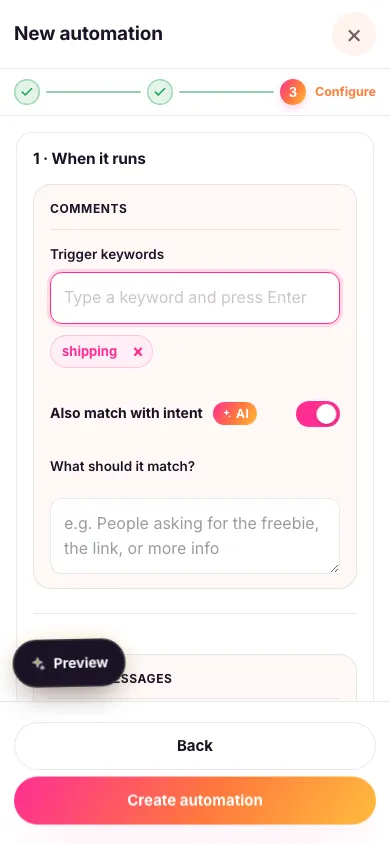
- Set your keywords. Add the words that should start this automation off. You can also turn on AI matching for a looser sense of what someone means — "what should it match?" — instead of relying only on exact words. Separately, you can let people trigger it by DMing you a word — see below.
- Write your reply, and decide how AI fits in. You can send a fixed reply every time, or let AI answer from your own knowledge source when your fixed reply doesn't apply — your call.
- Turn it on. The same follow-first requirement, reply-location switch and tagging options every other automation has are available here too — configure exactly what you need.

Let people trigger it by DMing you a word
Separately from the words you just set for comments, you can give this automation one word in its DM routing keyword box. Anyone who messages you that word starts the automation directly — no post, no comment, nothing attached needed. Tell people about it in your caption, story or bio: "DM me the word."
Use a single word with no spaces. It has to be the whole message, but capitals and punctuation around it don't matter, so "PRICING" and "pricing?" both work while "PRICING how much is it?" doesn't. Each word can only belong to one automation in your workspace, so give every automation its own.
Public reply or private DM
Look for the Move conversation to DM switch. It decides where your reply is delivered, not which message gets used — the reply you wrote is the one they receive either way.

- On: all anyone else sees under the comment is the short public teaser you write there. Your real reply, and everything after it — a follow-first prompt, any questions, your final message, any AI answers — is sent privately.
- Off: your reply is posted publicly on the comment instead.
Anything richer than plain text — tappable buttons, product cards, a file — can only be sent privately, so those are only available with the switch on.
Reply with AI still needs a knowledge source connected — Zaptium never invents an answer that isn't grounded in something you actually gave it.
What's next
If you're not sure custom is what you need, most common flows already have a ready-made goal — see sending a link, collecting leads, or the rest of the guides.