Send a link automatically when someone comments or messages you
This is the simplest automation you can build: someone comments a keyword or messages you, and they instantly get your link — a product page, a freebie, a PDF, whatever you're sending people to. Here's how to set it up.
Set it up in 5 steps
- Create a new automation and choose "Send link / resource." This is the goal that fits any "comment a word, get a link in your DMs" flow.
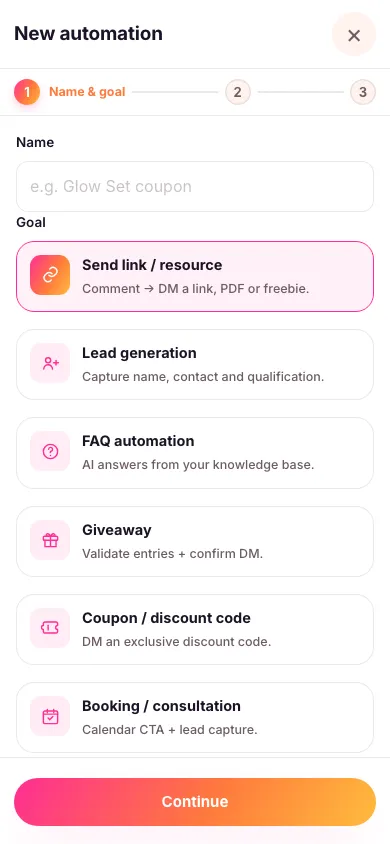
- Choose exactly which posts it replies to. Pick the specific posts, reels or stories you want it working on — or save it with nothing attached and point it at your next upload just before you publish. It only ever replies on the content you picked — there's no "watch my whole account" option, so anything you didn't pick is left alone. See choosing which posts an automation replies to.
- Pick your keyword. Whatever people type in a comment — for example LINK. Capitals don't matter, so "link", "Link" and "LINK" all work. You can also let people trigger it by DMing you a word instead of commenting — see below.
- Write your reply. This is the message that gets sent — decide below whether it posts publicly or arrives as a DM. Add your link as a tidy button, or attach a file directly, when it's going to DM; a public reply is plain text only.
- Turn it on. From now on, every matching comment gets your link sent automatically, any time of day.

Let people trigger it by DMing you a word
A comment isn't the only way in. Give the automation a word in its DM routing keyword box — say EBOOK — and anyone who messages you that word gets the link straight away, with no post or comment involved at all. Then tell people to use it: "DM me EBOOK" in your caption, your story, or your bio.

Use a single word with no spaces. It has to be the whole message, but capitals and punctuation around it don't matter, so "EBOOK" and "ebook!" both work while "EBOOK please send it over" doesn't. Each word can only belong to one automation in your workspace, so give every automation its own.
Public reply or private DM
Look for the Move conversation to DM switch. It decides where your reply is delivered, not which message gets used — the message you wrote is the one they receive either way.
- On: all anyone else sees under the comment is a short public teaser like "Just sent you a DM 👀". Your actual reply — and anything that follows it, like a follow-first prompt or an AI answer — is sent privately.
- Off: your reply is posted publicly on the comment instead, for everyone to see.
Anything richer than plain text — tappable buttons, product cards, a file — can only be sent privately, so those are only available with the switch on. And when someone starts the conversation by DMing your keyword, the reply always arrives in DM whichever way this is set, because there's no comment to reply to.
One more optional extra lives in the same setup screen: a follow-first requirement before the link goes out.
Every goal in Zaptium — not just this one — can also be told to answer general questions using AI, grounded in your own content. If someone asks something instead of just commenting the keyword, turn on "Reply with AI" in the automation's setup and point it at a knowledge source.
What's next
Once your link automation is live, you can build the same kind of flow for leads, coupons, bookings and more — see building a fully custom automation if none of the ready-made types fit exactly what you need.
Send your first link automatically
No card needed. Connect your account and go live in minutes.
Start free